By the AI Dance Maker team
How to make the AI Sway Dance effect from a photo
You have the dance in mind. The next question is usually more practical: which photo should you use, and what happens after you press Generate? Here is the process, from picking the photo to saving the finished clip.
Updated
The quick version
Open the AI Sway Dance template, choose one adult photo and check the preview. Sign in, review the displayed credit cost, tick the age and permission agreement, then click Generate. Follow the task in My Creations and download the MP4 when it is ready.
Make my AI Sway DanceWhat is the AI Sway Dance effect?
The recognizable part is the pose: raised arms, hands behind the head, and a side-to-side hip sway. A photo-to-video tool uses your image for the person’s appearance and a dance reference for the movement. You do not need to pose with your hands behind your head in the original photo.
“AI sway dance filter” is also used as a search term for this look. Here, it is a generated video from an uploaded photo. If you want a particular TikTok or CapCut filter, check that platform’s current effects or templates; names and availability can differ. The reference below is the best way to check whether this is the dance you want.
Start with a photo that gives the arms room
A full-body, near-front standing photo is a useful starting point for this dance. Keep the face clear and leave some original background above the head and outside both elbows. If the hands or head are already pressed against the edge, try the wider original before uploading a tight crop.
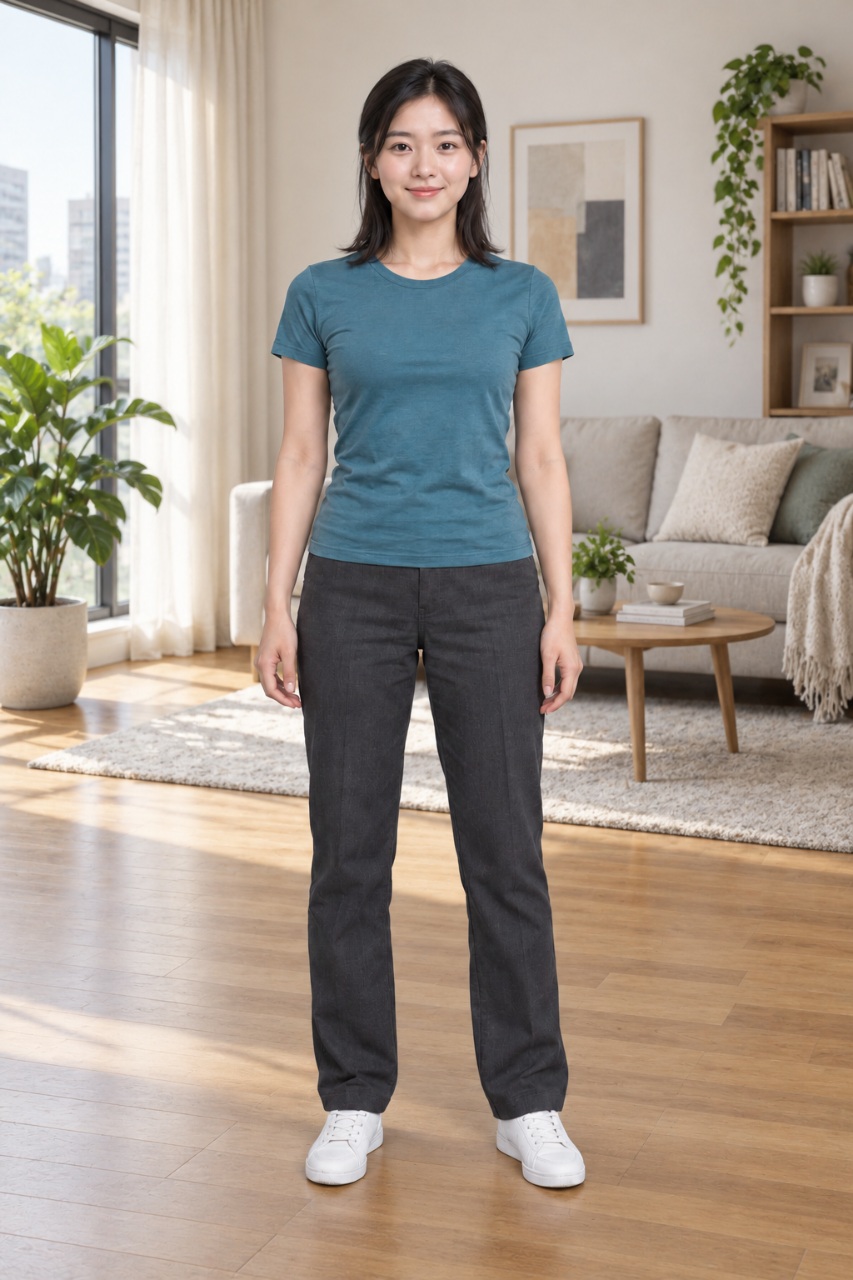
These images use the authorized photo from our K-Pop Sway example to explain framing. The close crop is a display illustration. Neither image is presented as an AI Sway input-and-result test.
Use JPEG, PNG or WebP, up to 10 MB. HEIC, GIF and video files are not photo inputs. Export a JPEG copy if your phone photo is HEIC; changing its filename will not convert it.
Compare more photo examplesMake the video, step by step
1. Open the AI Sway template
Watch the full reference first. AI Sway and K-Pop Sway are separate templates with different movements. On the AI Sway page, the current reference is 8 seconds and the generation quote is 20 credits. Keep that page open while you work through the rest of this guide.
AI Sway template and current quote2. Choose your photo and look at the preview
Choose a photo of one adult that you are allowed to animate. Once it loads, look at the actual preview: can you see the face, head and arms clearly? Are the hips and legs visible? The photo keeps its original proportions; reducing a large file does not fill in missing parts of the body.
Read any quality tips before deciding whether to keep the photo. They are suggestions, so you can continue with your current photo if you accept the possible variation. Unsupported or unreadable files need replacing. For a tight selfie, a wider photo is usually the more useful change.
3. Sign in, check the credits and confirm
Sign in to save the task to your account. Read the agreement beside the preview and tick it only after checking your photo. It confirms that you and the pictured person are adults, that you have permission to animate the photo, and that you understand the possible AI variation. Replacing the photo or template resets this agreement.
Check the quote before submitting. Use your available balance if it covers 20 credits; otherwise add credits through the pricing page. Browsing the reference and checking the photo do not use app credits.
4. Click Generate and follow the same task
Click Generate and follow any confirmation shown for the exact photo and credit quote. The service uploads and checks the photo before starting generation. Some requests need additional review. Once the task starts, follow it in My Creations; submitting the same photo again creates another request rather than speeding up the first.
The 8-second label is the dance reference length, not a promise that processing takes 8 seconds. You can leave the page and return later. If the task is pending, check its status before trying again.
5. Watch the whole result, then download
When the video is ready in My Creations, play it from the opening to the ending. Look at the face, both hands, clothing and background, especially during the raised-arm movement. Download the MP4 if you are happy with it. A different photo can produce a different result; a new generation has its own credit cost.
The template retains its original audio. Before posting to TikTok, Reels or Shorts, check the photo, likeness and music permissions for your intended use. You can replace the audio in an editor if needed.
What does one Sway video cost?
- Dance reference
- 8 seconds
- Current generation quote
- 20 credits
AI Sway currently uses 20 credits per generation. The Try pack is USD 4.99 for 40 credits, enough for 2 generations at this quote if you use the whole pack for AI Sway. That is the price of the full one-time pack; you can also use credits already in your account. Check the current tool and checkout prices before buying.
Task credits are reserved while generation and checks are pending. A confirmed failure or rejected result returns those task credits to your available balance. A pending task keeps them reserved. Returning app credits is separate from refunding a payment.
Check current credit packsIf something does not look right
Hands look odd or disappear near the edge
Check the original photo first. A crop that already removes the hands or elbows leaves less information for the model. Try a clear, wider image with space above the head and on both sides. This can improve the starting point, but AI-generated fingers and motion can still vary.
The face or clothing changes
Use the original image rather than a screenshot, and avoid heavy beauty filters, blur and strong backlighting. Keep one person easy to distinguish from the background. The tool aims to follow the photo’s appearance; it cannot promise an identical face in every frame.
The task is still processing
Return to the existing task in My Creations. Generation, saving and content checks take time, and some requests enter additional review. If progress stays unclear, contact support with the task ID. Do not buy another pack or submit again just to make a pending task move faster.
A few questions before you start
Is the AI Sway Dance effect free?
You can browse the dance reference and check your photo without using app credits. Generating the video requires 20 available credits at the current quote. The free preview is not a free finished video.
Do I need a prompt or my own dance video?
No. This workflow uses the preset AI Sway motion reference. Choose your photo and use the template’s existing settings. Custom text prompts and customer-uploaded dance references are not part of this tool’s current flow.
Can I share the finished video?
Download the MP4 from My Creations when it is ready. Check the person’s permission and the music rights before publishing. Account videos are private by default; use the sharing controls deliberately if you want to create a viewing link.
Have a photo in mind?
Open the AI Sway template and check it in the preview. You can prepare the photo before deciding to spend credits. If you are still choosing an image, the photo guide has more framing comparisons.
Make my AI Sway DanceUseful pages while you make it
- AI Sway template and current quote
- Which photos work best for an AI dance?
- My Creations: task status and downloads
- Credit returns and payment refunds
- Contact support